mirror of
https://github.com/pawelorzech/FastMemos.git
synced 2026-01-29 19:54:29 +00:00
A lightweight macOS menubar app for quickly capturing notes to your self-hosted Memos server
| FastMemos | ||
| FastMemos.xcodeproj | ||
| .gitattributes | ||
| .gitignore | ||
| AppIcon.png | ||
| LICENSE | ||
| README.md | ||
| screenshot-menu.png | ||
| screenshot.png | ||


FastMemos
A lightweight macOS menubar app for quickly capturing notes to your self-hosted Memos instance.
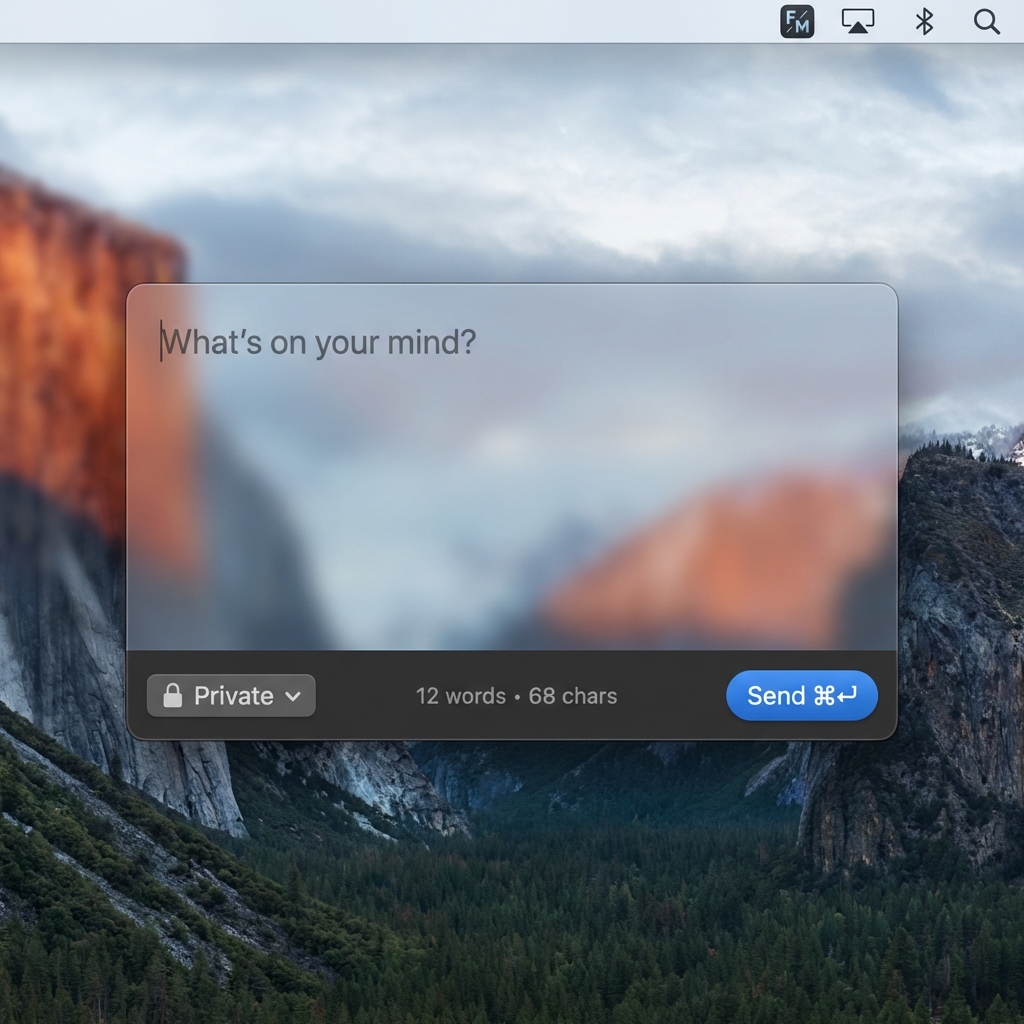

Features
- 🎯 Lives in your menubar - Always accessible, never in the way
- ⌨️ Global shortcut - Press
⌘⇧Manywhere to capture a thought (configurable) - ⚡ Instant sync -
⌘Enterto push notes to your Memos server - 🔐 Secure - Credentials stored in macOS Keychain
- 📊 Word count - Real-time character and word count
- 🔒 Visibility control - Set default visibility + override per memo
Requirements
- macOS 13.0 (Ventura) or later
- A self-hosted Memos instance
Installation
Download
Download the latest .dmg from Releases.
Build from Source
git clone https://github.com/pawelorzech/FastMemos.git
cd FastMemos
open FastMemos.xcodeproj
# Build with Xcode (⌘B)
Setup
- Launch FastMemos - look for the icon in your menubar
- Click the icon and go to Settings
- Enter your Memos server URL (e.g.,
https://memos.yourdomain.com) - Log in with your Memos username and password
- Configure your preferred default visibility
- Customize the global shortcut if desired
Usage
| Action | Shortcut |
|---|---|
| Open note window | ⌘⇧M (default, configurable) |
| Submit note | ⌘Enter |
| Close without saving | Escape |
Privacy
- Your credentials are stored securely in macOS Keychain
- Notes are sent directly to YOUR server - no third parties
- No analytics, no tracking, no telemetry
Contributing
Contributions are welcome! Please feel free to submit a Pull Request.
Feedback
Found a bug or have a feature request?
- Open an issue
- Email: pawel@orzech.me
License
MIT License © Paweł Orzech